Understanding GRBL for Pen Plotters and Drawing Machines
GRBL runs most affordable pen plotters. Here's a plain-English guide to what GRBL is, how it turns SVGs into motion, and the settings every plotter owner should know.
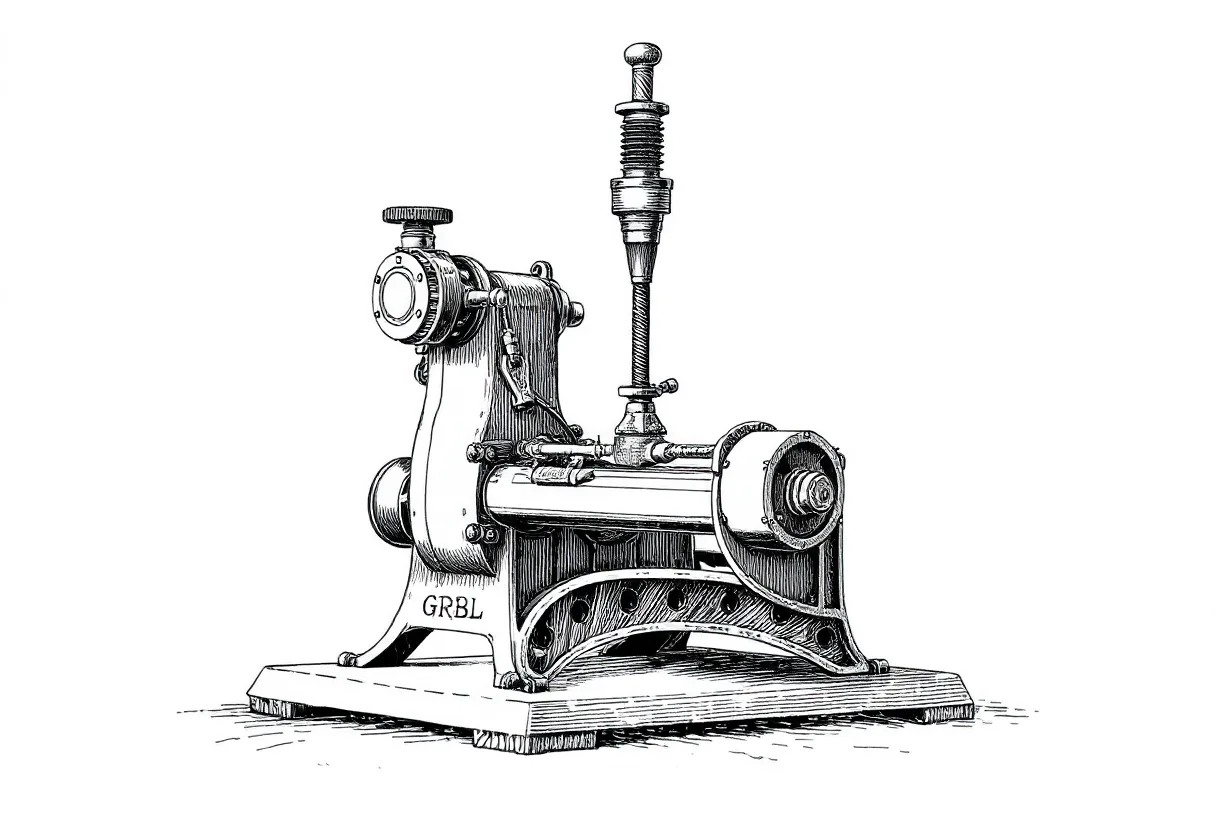
If you own an affordable pen plotter or drawing robot, there’s a good chance it runs GRBL. It sounds technical, but the concept is simple, and understanding it makes your GRBL drawing machine far less mysterious — and far easier to fix when something’s off.
What GRBL actually is
GRBL is free, open-source firmware — software that lives on the little controller board inside your machine. Its job: receive motion commands over USB and turn them into precise movements of the stepper motors that drive the pen. It originated in the CNC and laser world and was adapted for drawing machines because the problem is the same: move a tool to exact coordinates.
The pipeline: SVG to motion
Your design has to travel through a few stages to become movement:
- SVG — your vector artwork (lines and paths)
- G-code — a list of plain-text motion commands (
G1 X10 Y20, etc.) - GRBL — reads the G-code and drives the motors
- Motion — the pen moves and draws
The key translation step is SVG → G-code. Tools that do this include Inkscape’s gcodetools, vpype’s gwrite command, and various dedicated plugins.
Sending G-code to the machine
Once you have G-code, you stream it to the machine with a sender:
- LaserGRBL — popular, simple, Windows
- Universal Gcode Sender (UGS) — cross-platform
- Candle and others
The sender connects over USB, streams commands line by line, and shows progress. It’s the bridge between your computer and GRBL.
Pen up and pen down
Drawing machines need a way to lift and lower the pen. On GRBL machines this is usually a servo controlled by spindle commands — M3 S<value> to move the servo one way (pen down) and M5 or another value for pen up. Your G-code generator inserts these at the right moments. If your pen never lifts or never touches down, these values are the first thing to check.
The settings that matter
Type $$ in your sender to see GRBL’s settings. The ones that matter most for plotting:
$100/$101(steps-per-mm) — calibration. If a commanded 100 mm line measures 95 mm, adjust these. Do this first — every other setting assumes accurate distances.$110/$111(max rate) — top speed. Higher is faster but louder and can lose steps if too aggressive.$120/$121(acceleration) — how hard it speeds up/slows down. Lower = smoother, quieter, more accurate corners.
Common GRBL gotchas
- Pen doesn’t lift → wrong or missing servo (M3/M5) values in your G-code
- Drawing is the wrong size → steps-per-mm not calibrated
- Lost steps / skewed plots → speed or acceleration too high; reduce them
- Mirrored or rotated output → axis direction settings; flip the relevant
$3mask
Why it’s worth understanding
You don’t need to be an engineer, but knowing the SVG → G-code → GRBL → motion pipeline means that when a plot comes out wrong-sized, mirrored, or with the pen never lifting, you know exactly which stage to look at. A GRBL drawing kit is one of the best ways to learn this hands-on — assembling and calibrating one teaches you more about how plotters work than any amount of reading.
Frequently asked questions
What is GRBL?
GRBL is free, open-source firmware that runs on the controller board of many affordable drawing machines and CNC devices. It receives G-code (motion commands) over USB and translates it into precise stepper-motor movements that move the pen.
How do I send a design to a GRBL plotter?
You convert your SVG to G-code (via a tool like Inkscape's gcodetools, vpype's gwrite, or a dedicated plugin), then stream that G-code to the machine with a sender such as LaserGRBL or Universal Gcode Sender.
What GRBL settings matter for plotting?
Steps-per-mm (calibration so distances are accurate), maximum speed and acceleration (smoothness and noise), and your pen-up/pen-down commands (often servo M3/M5 values). Calibrate steps-per-mm first — everything depends on it.
Gear mentioned in this post
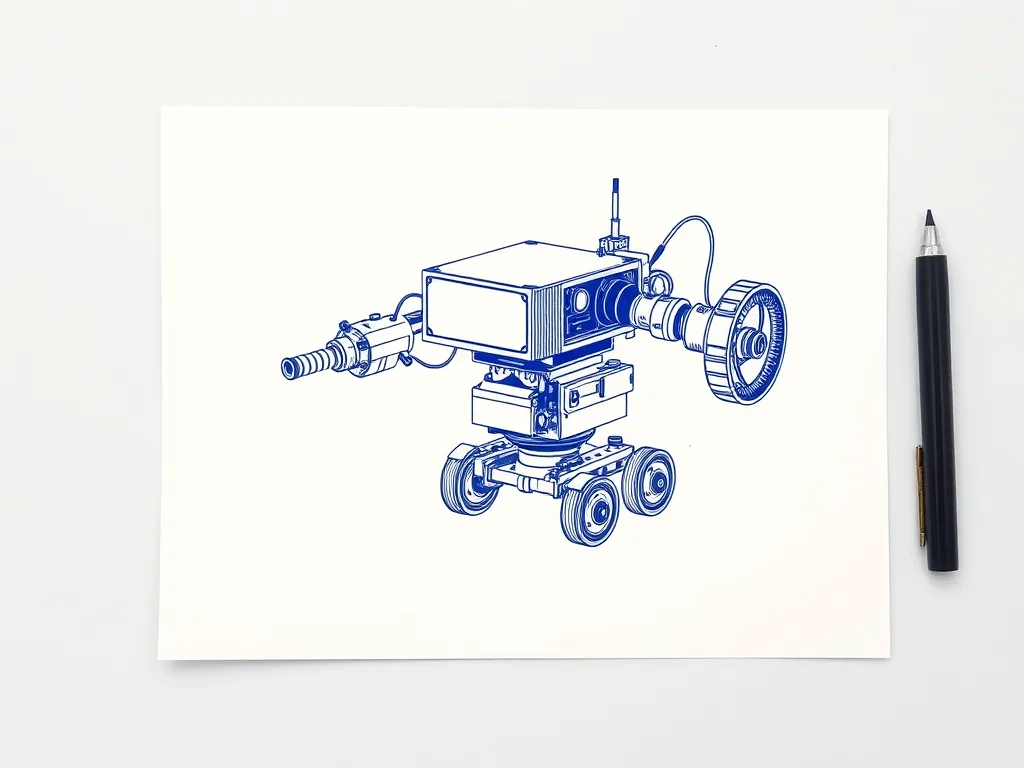
Two Trees GRBL Drawing & Writing Robot Kit
4.2 (142)A budget DIY drawing and writing robot kit on GRBL — heavy on assembly and tuning, light on price, and a genuinely good way to learn how plotters work.
Best for: Tinkerers who want to learn by building and tuning