Getting Started with Processing for Pen Plotters
Processing is the creative coding environment that powers a huge share of plotter art. Learn how to set it up, write your first sketch, and export SVGs for plotting.
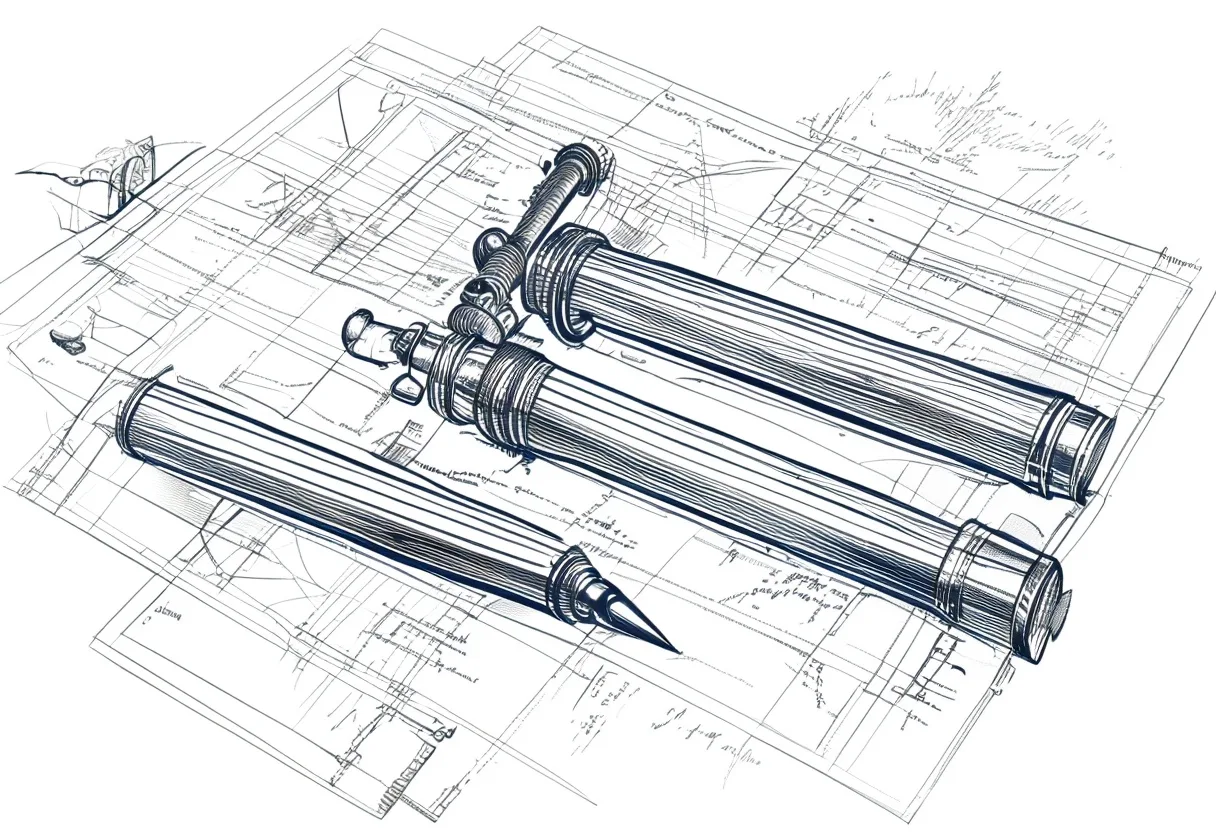
The majority of plotter art you see on social media was created in Processing — a free, open-source creative coding environment that’s been the home of generative art for over two decades. If you want to generate your own geometric and algorithmic designs rather than just plotting existing SVGs, Processing is the natural starting point. Here’s how to get up and running.
What Processing is
Processing is a Java-based programming environment with a minimal, visual-first API. You write code that draws shapes, and the environment shows you the result instantly. The core loop is simple:
void setup() {
  size(800, 800);  // canvas size
}

void draw() {
  line(100, 100, 700, 700);  // draw a diagonal line
  ellipse(400, 400, 200, 200);  // draw a circle
}
That’s it. setup() runs once; draw() runs every frame. Start there and add complexity.
Installing Processing
Download from processing.org — it’s free, runs on Mac, Windows, and Linux, and installs like any app. Launch it and you’ll see a simple code editor. Press the play button and your sketch runs.
The Processing Handbook is the reference book from the creators — thorough and clear, it’s the companion that turns online examples into genuine understanding.
Writing for a plotter: think in paths
Screens display colour fills and gradients. Plotters draw lines. When you design in Processing for a plotter, think exclusively in paths:
line(x1, y1, x2, y2)→ one pen strokeellipse()with no fill, only stroke → circle outlinebeginShape() / vertex() / endShape()→ polygon outlinesbezierVertex()→ smooth curves
Remove all fill() calls from your plotter sketches. Use only stroke() and noFill(). A filled shape in Processing won’t cause an error, but it won’t plot the fill — only the outline draws.
Exporting SVG from Processing
This is the critical step. Processing normally renders to a screen pixel buffer. To get an SVG, you must use the SVG renderer:
import processing.svg.*;

void setup() {
  size(800, 800, SVG, "output.svg");
}

void draw() {
  line(100, 100, 700, 700);
  // ... your drawing code
  exit();  // stop after first frame
}
The SVG renderer writes vector paths directly instead of pixels. The exit() call stops after one frame — necessary because you want a single static output, not an animation.
The resulting output.svg file is in your sketch folder (shown in the Processing title bar). Drag it to Inkscape or a browser to verify it looks correct before plotting.
Your first plotter sketch
Here’s a complete, working example — a grid of circles:
import processing.svg.*;

void setup() {
  size(600, 600, SVG, "grid.svg");
  background(255);
  noFill();
  stroke(0);
  strokeWeight(1);

  int cols = 10;
  int rows = 10;
  float cellW = width / (float)cols;
  float cellH = height / (float)rows;

  for (int i = 0; i < cols; i++) {
    for (int j = 0; j < rows; j++) {
      float x = (i + 0.5) * cellW;
      float y = (j + 0.5) * cellH;
      float r = random(5, cellW * 0.4);
      ellipse(x, y, r * 2, r * 2);
    }
  }

  exit();
}
Run this, find grid.svg in the sketch folder, and plot it. Change random(5, cellW * 0.4) to different formulas and the grid changes character entirely.
Optimizing and plotting
After exporting, run through vpype before plotting:
vpype read grid.svg linesort write grid_sorted.svgProcessing generates paths in code order, not travel order. Sorting dramatically reduces the time your plotter wastes travelling between distant elements.
Going deeper
Once the basics work, the natural next steps are:
- Noise-based variation — use
noise(x, y)to vary parameters across the canvas smoothly - Recursion — draw shapes within shapes (Processing handles recursion naturally)
- L-systems — add a string rewriting loop for branching structures
- Flow fields — noise-driven particle paths
The Nature of Code by Daniel Shiffman is the book that takes you from sketching to understanding — covering vectors, forces, noise, and emergence. It’s the single best investment for generative plotter artists who code.
Frequently asked questions
What is Processing and why do plotters use it?
Processing is a free, open-source programming environment built for visual art. It provides a simple drawing API (line, rect, ellipse, arc) with a built-in animation loop. A huge share of generative plotter art is created in Processing because it's easy to learn, has an enormous community, and exports SVGs natively.
Is Processing free?
Yes, Processing is completely free and open-source. Download it from processing.org. There is also p5.js, a JavaScript port that runs in the browser — both communities share techniques freely.
How do I export an SVG from Processing for plotting?
Import the SVG library, create a PDF/SVG renderer with beginRecord(), run your sketch, call endRecord(). The output is a vector SVG file ready for the plotter. The key is not using the default screen renderer — you must switch to the SVG renderer for a plottable output.
Gear mentioned in this post
Daniel Shiffman The Nature of Code
4.8 (900)The book that teaches the generative-systems thinking behind great plotter art — flow fields, forces, noise and autonomous agents, all in approachable code.
Best for: Learning to generate art worth plotting
Casey Reas & Ben Fry Processing: A Programming Handbook
4.6 (360)The foundational Processing reference from the language's own creators — the bedrock under a huge amount of plotter art, and the book you keep open while you code.
Best for: Properly learning the language behind plotter art
Antoine Beyeler vpype (Free)
4.9 (480)The command-line Swiss-army knife for pen plotter SVGs — optimizes, reorders, merges, crops and prepares vector files for cleaner, faster plots.
Best for: Everyone — mandatory step between generative art and plotting
Evil Mad Scientist AxiDraw V3/A3
4.9 (312)The pen plotter that serious plotter artists upgrade to — precise, quiet, and compatible with nearly every pen and surface you'd want to draw on.
Best for: Artists ready to invest in the best